
Restic System Backups
Arch Linux with S3 and Systemd

Backup strategies become critical when managing minimal distributions like Arch Linux, where the freedom they provide comes with increased responsibility for system reliability. In this post, I'll demonstrate how to utilize restic, a backup tool written in Go, in combination with S3 and scheduled systemd executions. The complete project will be available in my GitHub repository. Feel free to fork, ask questions, or suggest improvements.
While systemd timers provide scheduling for single-node deployments, enterprise environments may require a more orchestrated solution through tools like Kubernetes CronJobs or AWS Systems Manager for multi-node consistency and centralized monitoring.
Restic
When evaluating backup solutions for production environments or personal use, the architecture must prioritize encryption at rest, cloud-native scalability, and operational efficiency. Restic's design patterns align with these enterprise requirements through its shared deduplication model, cryptographic integrity guarantees, and support for multiple operating systems (macOS, Linux, Windows).
Restic implements a content-addressable storage architecture with AES-256-GCM encryption and Poly1305 authentication, ensuring both confidentiality and integrity. This design reduces storage overhead through deduplication while maintaining cryptographic security standards required for compliance frameworks like SOC 2 and ISO 27001.
Make sure to examine restic's GitHub repository and the official restic documentation for more information.
Backup Architecture
The following visualization demonstrates the exact architecture we're going to build.
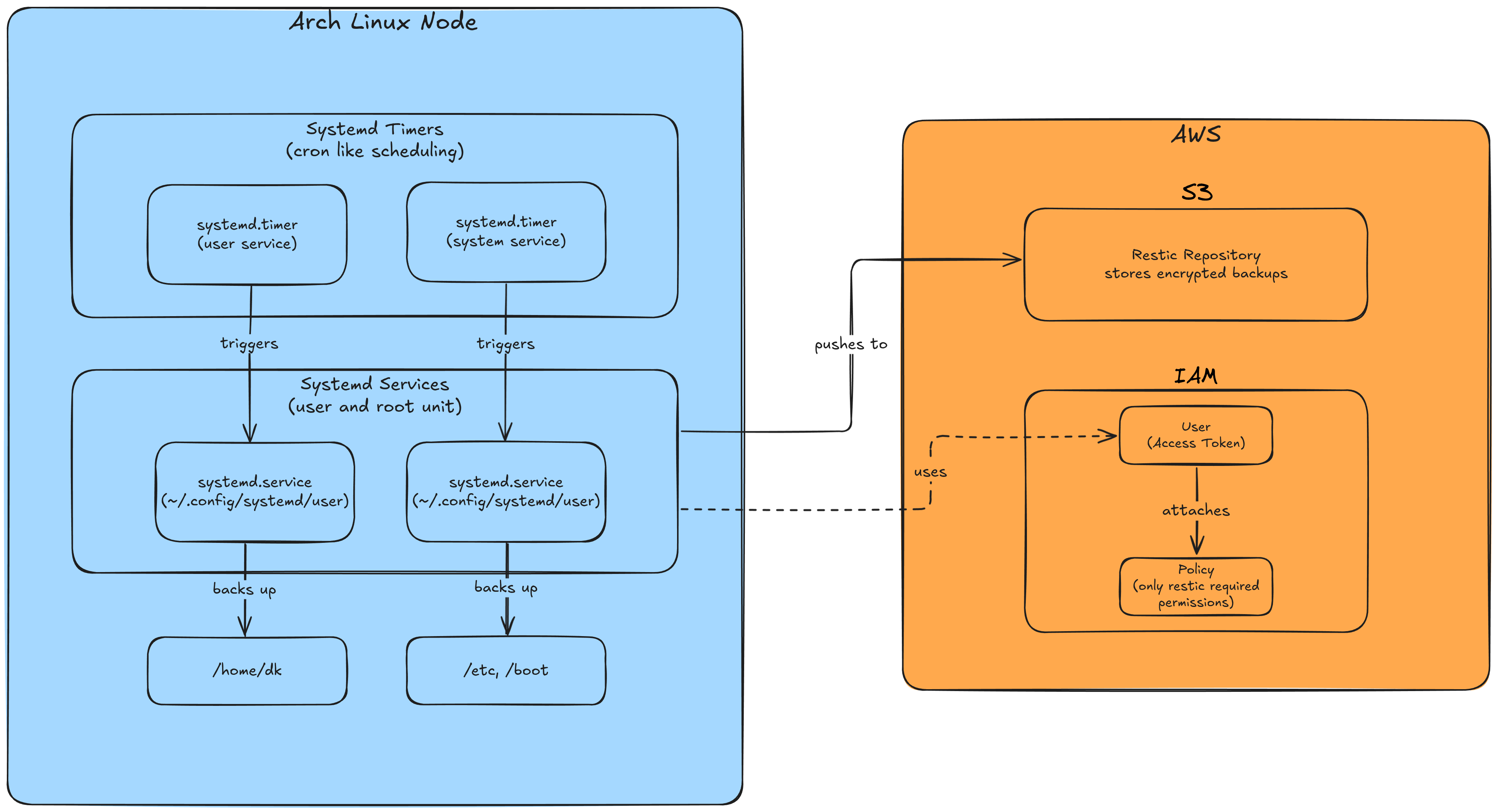
Starting with the Linux system, we'll create two systemd timers and associated systemd services. Separation of concerns is guaranteed by splitting system and user-specific backups into separate services, which allows the system backup to run as a root unit compared to the user backup, which runs as a user unit. The resulting backups will be stored in a restic repository located in AWS S3 object storage. Creating an IAM user with least-privilege permissions is a crucial best practice to limit the restic user's access to only the S3 bucket.
IAM policy design requires balancing security constraints with operational efficiency. While restricting permissions to bucket-specific operations (s3:GetObject, s3:PutObject, s3:DeleteObject) enhances security posture, consider the operational overhead of managing multiple service accounts versus a single backup service principal with broader S3 permissions.
Setting Up the Infrastructure
After installation, we need to initialize the repository. We can either use the -r flag to specify the repository path or set an environment variable for the repository location.
Make sure to specify the URL to the s3 bucket as described in the restic documentation, or restic will have trouble to locate the repository.
For simplicity, the following scripts provide the needed environment variables inside the scripts. Ensure for a production environment to pull those secrets from an external secrets manager.
Initialize the restic repository in the S3 bucket
RESTIC_REPOSITORY="s3:https://<s3-domain>/<bucket-name>"
RESTIC_PASSWORD=""
AWS_ACCESS_KEY_ID = ""
AWS_SECRET_ACCESS_KEY=""


restic init
The restic backup script for system directories:
#!/bin/bash

export RESTIC_REPOSITORY=""
export RESTIC_PASSWORD=""

export AWS_ACCESS_KEY_ID=""
export AWS_SECRET_ACCESS_KEY=""

# Run the backup for system files only
echo "Starting system backup at $(date)"
restic backup \
  /etc \
  /boot \
  --tag "system" \
  --verbose

# Maintain backups - Keep 1 daily, 1 weekly, and 1 monthly backups
echo "Pruning old backups..."
restic forget \
  --keep-daily 1 \
  --keep-weekly 1 \
  --keep-monthly 1 \
  --prune

echo "System backup completed at $(date)"
The restic home user backup script with pacman export lists:
#!/bin/bash


export RESTIC_REPOSITORY=""
export RESTIC_PASSWORD=""

export AWS_ACCESS_KEY_ID=""
export AWS_SECRET_ACCESS_KEY=""

# Export package lists
echo "Exporting package lists..."
mkdir -p ~/Backups/package-lists
pacman -Qqe >/home/dk/Backups/package-lists/all-packages.txt
pacman -Qqen >/home/dk/Backups/package-lists/native-packages.txt
pacman -Qqem >/home/dk/Backups/package-lists/foreign-packages.txt

# Run the backup
echo "Starting dk backup at $(date)"

restic backup \
	/home/dk \
	--exclude="*/Cache/*" \
	--exclude=".cache/*" \
	--exclude="/home/dk/.mozilla/firefox/" \
	--exclude="/home/dk/.steam" \
	--exclude="/home/dk/.local/share/Steam" \
	--exclude="*/ComputeCache/*" \
	--exclude="*.tmp" \
	--exclude="*.log" \
	--exclude="**/.env" \
	--exclude="**/.envrc" \
	--exclude="/home/dk/yay" \
	--exclude="/home/dk/Downloads" \
	--exclude="*/node_modules/*" \
	--exclude="/home/dk/.npm" \
	--exclude="/home/dk/github.com" \
	--exclude="/home/dk/.config/alacritty/themes" \
	--tag "dk-home" \
	--verbose

# Maintain backups - Keep 1
restic forget \
 	--keep-daily 1 \
 	--keep-weekly 1 \
 	--keep-monthly 1 \
 	--prune \
 	--tag "dk-home"

# Check repository integrity
echo "Checking repository integrity..."
restic check

echo "System backup completed at $(date)"
Systemd timer and services backup scripts:
#!/bin/bash

# Create the service file (requires sudo)
sudo bash -c 'cat > /etc/systemd/system/restic-system-backup.service << EOF
[Unit]
Description=Restic System Backup Service
After=network-online.target
Wants=network-online.target

[Service]
Type=oneshot
ExecStart=/backups/restic/restic-system-backup
Nice=19
IOSchedulingClass=idle
TimeoutStartSec=2h

[Install]
WantedBy=multi-user.target
EOF'

# Create the timer file
sudo bash -c 'cat > /etc/systemd/system/restic-system-backup.timer << EOF
[Unit]
Description=Run Restic System Backup daily at 8pm

[Timer]
# Run at 08:00 PM  with a random delay of up to 1 hour
OnCalendar=*-*-* 20:00:00
RandomizedDelaySec=3600
Persistent=true

[Install]
WantedBy=timers.target
EOF'

# Reload system daemon
sudo systemctl daemon-reload

# Enable and start the timer
sudo systemctl enable restic-system-backup.timer
sudo systemctl start restic-system-backup.timer

# Verify the timer is active
sudo systemctl list-timers --all
#!/bin/bash
# Create the systemd user directory if it doesn't exist
mkdir -p ~/.config/systemd/user/
# Create the service file
cat > ~/.config/systemd/user/restic-dk-backup.service << 'EOF'
[Unit]
Description=Restic Home Backup Service
After=network-online.target
Wants=network-online.target
[Service]
Type=oneshot
ExecStart=/backups/restic/restic-dk-backup
Nice=19
IOSchedulingClass=idle
TimeoutStartSec=12h
[Install]
WantedBy=default.target
EOF
# Create the timer file
cat > ~/.config/systemd/user/restic-dk-backup.timer << 'EOF'
[Unit]
Description=Run Restic Home Backup daily at 8pm
[Timer]
# Run at 08:00 PM with a random delay of up to 1 hour
OnCalendar=*-*-* 20:00:00
RandomizedDelaySec=3600
# If system was off when backup should have run, run it when system is on
Persistent=true
[Install]
WantedBy=timers.target
EOF
# Reload systemd user daemon
systemctl --user daemon-reload
# Enable and start the timer
systemctl --user enable restic-dk-backup.timer
systemctl --user start restic-dk-backup.timer
# Verify the timer is active
systemctl --user list-timers --all
Monitoring with journalctl
journalctl -u restic-system-backup.service
journalctl --user -u restic-dk-backup
For production logging and monitoring, consider implementing a centralized logging solution such as the PLG stack (Prometheus + Loki + Grafana) for metrics and logs, or the ELK stack (Elasticsearch + Logstash + Kibana) for full-text search capabilities.